While working through an AWS IAM lab, I needed a command line to test policies because the IAM Policy Simulator was unavailable in my AWS account. I started with PowerShell on Windows 11, then moved to RHEL 10 running under WSL2, which better fits the Linux environment I want to practise.
This is my working record from 25 November 2026: the installation commands, the errors that actually occurred, the fixes and the meaning of the AWS CLI command structure. The examples use an imaginary profile (lab-s3) and contain no real credentials.
1. The workstation setup
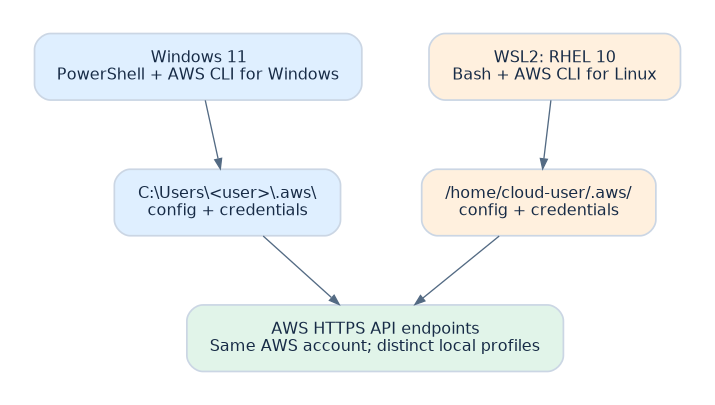
| Environment | What I use it for |
|---|---|
| Windows 11 + PowerShell | Windows administration, occasional AWS/Azure commands |
| RHEL 10 + WSL2 | Primary AWS CLI, Bash, Linux and future automation labs |
| AWS Console | Human browser sign-in and lab IAM policy configuration |
WSL2 runs a Linux environment on the Windows machine, but it is not the same user environment. Installing aws in PowerShell does not automatically install the Linux executable. Likewise, their named profiles are normally stored in different home directories.
2. Windows PowerShell: install AWS CLI quickly
Download the official AWS CLI v2 Windows MSI, run the installer, close PowerShell and open a fresh terminal.
aws --version
# Example: aws-cli/2.42.3 ... Windows/11 ...

aws configure --profile lab-s3
# Supply the access key ID and secret securely, if using a lab IAM user.
# Default region name: ap-southeast-2
# Default output format: json

aws sts get-caller-identity --profile lab-s3
Two problems surfaced while configuring the Windows profile:
awsnot recognised: the CLI was not installed or PowerShell had not reloaded the PATH. Installing the MSI and opening a new terminal fixed it.- Partial credentials / missing
aws_secret_access_key: I had entered an access key ID but left the secret field blank. A named profile with only half the credential pair cannot authenticate. Rerunaws configure --profile lab-s3and enter the secret locally; never share it in chat or screenshots.
Another useful detail: the region must be an AWS region code, not the city name. Use ap-southeast-2, not Sydney.
3. RHEL 10 WSL2: prepare the Linux environment
My RHEL shell initially had curl but no unzip:
uname -m          # x86_64
command -v curl   # /usr/bin/curl
command -v unzip  # initially no result
As root, I tried:
dnf install -y unzipThe installation failed with HTTP 403 while retrieving Red Hat AppStream repository metadata. Importantly, the eventual issue was Red Hat subscription registration, not AWS.
subscription-manager status
# Overall Status: Registered

subscription-manager identity
# Consumer profile ... has been deleted from the server
The local registration status looked healthy, but the server no longer recognised the consumer profile. subscription-manager identity revealed the mismatch. That distinction matters: a 403 alone does not establish the cause; the identity output did in this case.
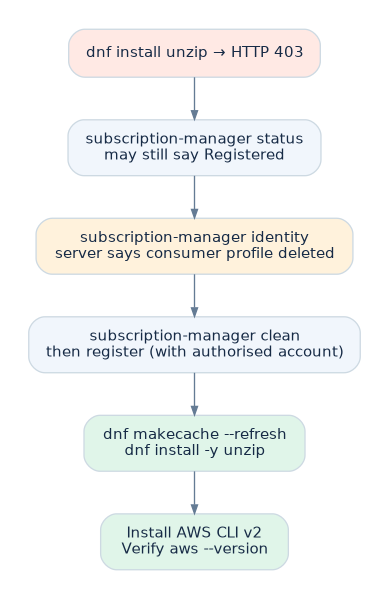
In this personally controlled lab machine, I fixed the stale registration as follows:
# As root; use only when you know the old registration is invalid
subscription-manager clean
subscription-manager register
# Supply Red Hat account credentials interactively, not in the command line

dnf makecache --refresh
dnf install -y unzip
The subsequent install succeeded. On an employer-managed or Satellite-managed RHEL system, do not casually run subscription-manager clean: check the organisation’s registration process first.
4. Install AWS CLI v2 on RHEL
Once unzip was available, I used AWS’s official x86_64 Linux installer:
# Install as root or with appropriate elevated privileges
curl "https://awscli.amazonaws.com/awscli-exe-linux-x86_64.zip" -o awscliv2.zip
unzip -q awscliv2.zip
./aws/install

aws --version
# In this lab: aws-cli/2.42.3 ... Linux/...-WSL2 ...
For higher-assurance environments, check the AWS documentation on verifying the downloaded installer signature. Do not execute arbitrary scripts from untrusted mirrors.
I was initially logged in as Linux root. Installing system software as root can be necessary; using root for everyday AWS work and storing AWS credentials under /root is not a good habit.
5. Use an ordinary Linux user
I confirmed a non-root account existed and switched to it:
getent passwd | awk -F: '$3 >= 1000 && $3 < 60000 {print $1, $3, $6}'
# Example: cloud-user 1000 /home/cloud-user

su - cloud-user
whoami       # cloud-user
echo "$HOME" # /home/cloud-user
aws --version
Now the AWS CLI files belong under /home/cloud-user/.aws/, not /root/.aws/.
6. Configure a named AWS CLI profile
aws configure --profile lab-s3
# Access Key ID: enter locally (do not publish)
# Secret Access Key: enter locally (do not publish)
# Region: ap-southeast-2
# Output format: json

aws configure list --profile lab-s3
# Shows credential sources; secrets are masked
For a straightforward static-key profile, AWS CLI uses these files:
/home/cloud-user/.aws/
  credentials  -> [lab-s3], access key ID, secret access key
  config       -> [profile lab-s3], region, output, CLI options
Equivalent default Windows files usually live under %USERPROFILE%\.aws\ for the Windows user. These two operating environments do not automatically share their configuration. The profile name is a local alias, not an IAM group or a new AWS identity.
For everyday access, prefer short-term credentials (for example, AWS sign-in/SSO or role-based credentials supported by the account). I used a scoped IAM access key only for this controlled learning exercise. Reusing the same key in two environments increases the places where it must be protected and later removed.
7. Troubleshooting: AWS CLI tries to open less
The Linux CLI authenticated far enough to produce output, but the CLI could not display it:
Pager: Unable to redirect output to pager
No such file or directory: 'less'
AWS CLI v2 can invoke an external pager. The minimal RHEL installation did not have less. Rather than install it, I disabled paging for the profile:
aws configure set cli_pager "" --profile lab-s3

# Alternative for one command:
aws sts get-caller-identity --profile lab-s3 --no-cli-pager
This affects display behaviour only; it does not change IAM permissions. Disabling the CLI output pager is different from disabling AWS API result pagination.
8. What does aws sts get-caller-identity actually do?
aws sts get-caller-identity --profile lab-s3
| Part | Meaning |
|---|---|
aws |
The local AWS CLI executable |
sts |
AWS Security Token Service |
get-caller-identity |
STS API operation that reports the caller’s identity |
--profile lab-s3 |
Choose the locally stored credentials and configuration named lab-s3 |
The flow is: CLI reads the selected profile → uses its credentials to sign the request → sends the request to the STS endpoint → STS returns identity details.
A successful example (all values are placeholders):
{
  "UserId": "AIDAEXAMPLEIDNOTREAL",
  "Account": "111122223333",
  "Arn": "arn:aws:iam::111122223333:user/s3-readonly-lab"
}
GetCallerIdentity does not issue temporary credentials. It only answers “Who is making this request?” Other STS operations such as AssumeRole and GetSessionToken can return temporary credentials. STS identity lookup does not require a separately granted IAM permission.
This also helped me distinguish two types of identity:
su - cloud-userchanges the local Linux user.--profile lab-s3selects the AWS identity used to authenticate API requests.
One Linux user can use multiple AWS profiles, and the AWS profile name does not have to match any IAM username.
9. Test a real read-only S3 permission
Using an IAM user with the managed AmazonS3ReadOnlyAccess policy attached directly:
aws sts get-caller-identity --profile lab-s3
aws s3api list-buckets --profile lab-s3
Both commands succeeded in the lab. The S3 response was:
{
  "Buckets": [],
  "Owner": { "ID": "REDACTED" }
}
"Buckets": [] means no buckets were present, not that AWS denied access. I have omitted optional response fields and masked the owner identifier here.
A sensible next exercise is checking an operation for which the identity has no allow policy:
# Not yet run in this recorded lab; denial is expected
aws ec2 describe-vpcs --region ap-southeast-2 --profile lab-s3
The expected response is UnauthorizedOperation or AccessDenied, assuming no other permissions grant access. This proposed negative test was not completed at the time of writing.
10. Security and cleanup
- Never publish access key IDs paired with secrets, full credential files, account recovery information, or MFA seeds.
- Prefer short-lived credentials for real work.
aws loginand IAM Identity Center/role-based workflows can be preferable where supported; check the account experience and organisational guidance. - Delete or deactivate the IAM lab access key in AWS after testing. Then remove only that profile’s entries from the local Linux and Windows AWS configuration files, without destroying other profiles.
- Keep the
.awsdirectory private:chmod 700 ~/.awsandchmod 600 ~/.aws/credentials ~/.aws/configwhere those files exist. - AWS CLI may offer an optional AI agent-toolkit configuration. It is not required for ordinary CLI, IAM or S3 learning; it can be explored later.
- IAM-user MFA was not completed in this lab. Having Builder ID MFA does not make a long-term CLI key MFA-protected.
The earlier post, AWS IAM in the New Console, explains the identity and policy side of this lab.
References
- AWS: Install AWS CLI v2
- AWS: Configuration and credential files
- AWS: STS GetCallerIdentity
- AWS: CLI output pager
- Red Hat: RHEL system registration
This post records a particular lab environment in November 2026. Commands that change accounts or registrations should always be reviewed before applying them to managed or production systems.